
Developing with Local NuGet in Visual Studio in an Offline Environment
TLDR
- In offline environments, avoid direct DLL references; it is recommended to use a "Local NuGet Package Source" for management to ensure dependency and version accuracy.
- You can add a local folder as a NuGet source via Visual Studio's "Package Sources" settings.
- Use the
nuget addcommand to publish custom packages to the local source folder. - To extend packages from NuGet.org, copy packages from the
%userprofile%\.nuget\packagesdirectory on a machine with internet access, rather than from the project'spackagesfolder. - The
packages.configproject directory for .NET Framework does not contain complete NuGet data and cannot be used as a source backup.
NuGet Offline Package Configuration
When does this issue occur: When the development environment is restricted by network policies and cannot connect to NuGet.org for package restoration or installation.
In Visual Studio, you can set a local folder as a NuGet package source to meet offline development requirements:
- Open the NuGet Package Manager settings in Visual Studio.
- On the "Package Sources" page, click the "+" button in the top right corner.
- Specify a local folder path as the source.
- When installing packages, select that source in the top right corner of the NuGet management interface.
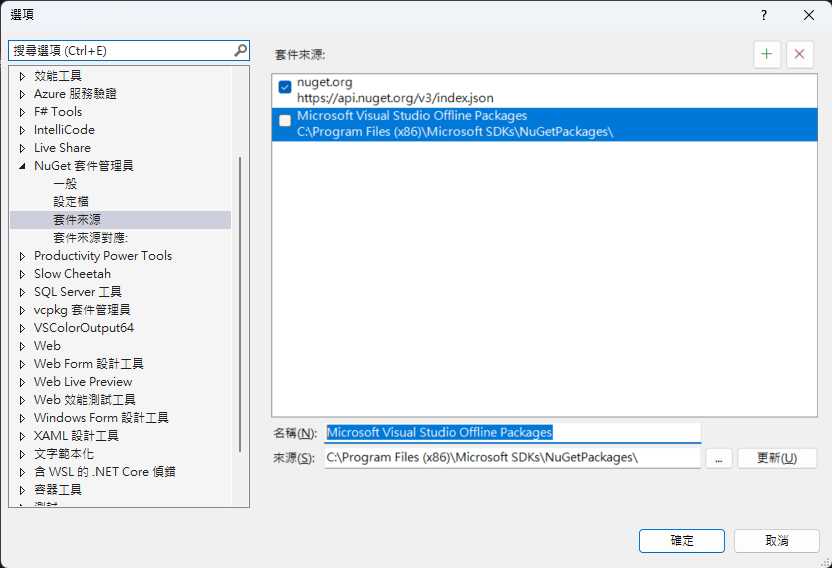
Extending Local Packages
When does this issue occur: When you need to package a self-developed Class Library into a NuGet package and provide it for use in an offline environment.
To publish a custom package to the local source folder, use nuget.exe to execute the following command:
nuget add {packagePath} -Source {sourcePath}{packagePath}: The path to the.nupkgfile.{sourcePath}: The path to the configured local NuGet source folder.
For detailed command instructions, please refer to add command (NuGet CLI).
Extending Packages from NuGet
When does this issue occur: When a project needs to use public packages from NuGet.org, but the development environment cannot connect to the internet.
To move public packages to an offline environment, follow these steps:
- Install the package on a computer with internet access.
- Go to the Windows package cache path:
%userprofile%\.nuget\packages. - Copy the corresponding package folder and place it into the local NuGet source folder of the offline environment.
WARNING
When installing NuGet packages using .NET Framework, packages.config is used by default, and a packages folder will be created in the project root directory. Please note that the packages here do not contain complete NuGet data; do not copy them from here into your configured local package source.
Change Log
- 2023-12-05 Initial documentation created.